
Most GA4 properties we audit are tracking the wrong events, missing parameter context, or running without Consent Mode v2. This is the implementation guide for teams who want their data to actually hold up under scrutiny.
Where Most GA4 Implementations Actually Break
After auditing dozens of GA4 properties, the pattern is consistent. The tracking fires, the events appear in the interface, and the numbers look plausible. But plausible is not accurate. The real failure happens at the measurement planning stage, before a single tag is written. Teams implement GA4 as a UA replacement, recreate the same pageview-centric reporting logic, and miss everything the event model was designed for.
This guide is not a beginner walkthrough. You have GA4 running. The aim here is getting it right at the level where the data actually supports budget decisions, attribution analysis, and product experiments without someone having to caveat every number in a meeting.
Property Configuration for Production-Grade Setups
The settings most tutorials skip are the ones that quietly corrupt your data for months before anyone notices.
Change data retention from the default two months to 14 months immediately. Go to Admin > Data Settings > Data Retention. This matters specifically because the Explorations section queries raw event data directly, not pre-aggregated reports. Without 14 months of retention, year-over-year analysis in Explorations simply does not work.
If your product has authenticated users, enable User-ID collection. Configure it under Admin > Data Streams > your stream > Additional measurements, then pass a hashed identifier via gtag('config', 'G-XXXXX', {'user_id': 'hashed_user_id'}) whenever a user is signed in. GA4 stitches cross-device sessions together using this, giving you a far more accurate user count than relying on device-browser combinations alone. Never pass a raw email address or any unencrypted PII.
For internal traffic filtering, the IP-based filter is obvious but it is not enough if your team works remotely or uses a VPN with dynamic IPs. Supplement it with a developer traffic filter based on a custom dimension. Set a cookie or localStorage flag on internal machines, read it as a JavaScript variable in GTM, pass it as a user property, then create an internal traffic rule filtering on that property value.
Cross-domain tracking deserves its own entry on your setup checklist. If checkout, booking, or onboarding happens on a separate domain or subdomain, configure it under Admin > Data Streams > Configure tag settings > Configure your domains. Without this, the session breaks at each domain boundary and you see inflated direct traffic with fragmented conversion paths that are impossible to make sense of.
One setting that creates unexpected problems: Google Signals. Enable it for cross-device reporting and remarketing, but understand that GA4 applies data thresholding when Signals is active. When an audience segment falls below Google's threshold (roughly 50 to 100 users depending on the report type), the data gets suppressed entirely. On low-traffic properties this can hide large portions of your demographic data. If thresholding is causing problems, either disable Signals for that property or rely on BigQuery for unthresholded analysis.
Want this implemented for your funnel?
Get a free 90-day growth plan with tracking, channel priorities, and next-week actions.
GA4's Event Data Model in Practice
Everything in GA4 is an event, and every event can carry parameters as key-value pairs. Understanding the four event categories matters because they behave differently in the interface, have different implementation requirements, and produce different schemas in BigQuery.
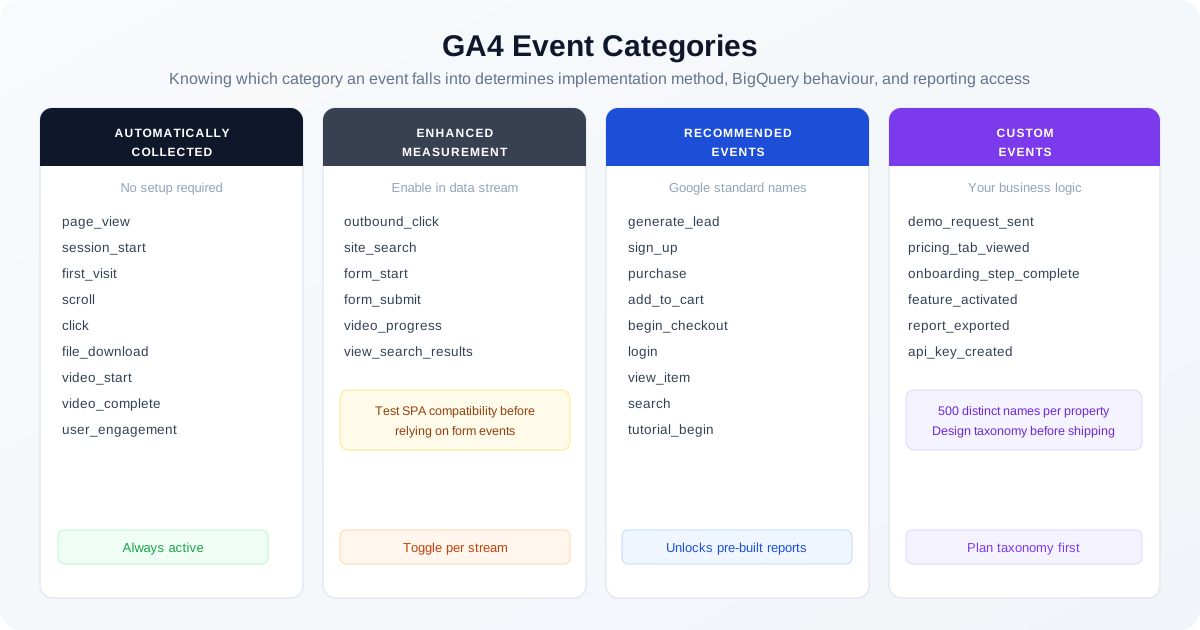
Automatically collected events need no implementation. They fire when the GA4 tag initialises, when sessions start, and on first visits. You cannot modify their parameters beyond what Google collects by default.
Enhanced measurement events are collected automatically when enabled in your data stream, but treat them with scepticism in certain environments. The outbound click event fires on link click before navigation completes, which creates timing issues on slow connections or in single-page applications. The form interaction events are unreliable on custom form components that do not use native HTML form elements. Enable enhanced measurement selectively, test it properly, and where accuracy matters, replace it with dedicated GTM custom event triggers instead.
Recommended events are Google's standardised naming conventions for common actions: generate_lead, purchase, sign_up, begin_checkout. Using these names is not mandatory, but it unlocks pre-built report templates in GA4 and maps cleanly to Google Ads conversion categories when you link the two properties. That mapping quality feeds directly into Smart Bidding signal quality, so it matters more than most teams realise.
Custom events cover everything else. GA4 allows up to 500 distinct event names per property. That limit sounds generous until a year into implementation when separate teams have independently created overlapping events with inconsistent naming. The 500-name limit is a hard cap with no override, and renaming events requires creating new ones rather than editing existing ones.
Implementing Custom Events via GTM
The cleanest implementation pattern is a dataLayer push from your application code with GTM reading those values and forwarding them to GA4. This keeps all analytics logic out of your application source, makes events testable in isolation, and lets you update tracking without a code deployment.
A properly structured dataLayer push for a form submission looks like this:
window.dataLayer = window.dataLayer || [];
window.dataLayer.push({
  event: 'form_submission',
  form_id: 'demo-request',
  form_location: 'homepage-hero',
  user_type: 'prospect'
});
In GTM, create a Custom Event trigger that fires on the event name form_submission, then create Data Layer Variables for each parameter. In your GA4 Event tag, add those variables as event parameters. The naming convention matters: lowercase with underscores, consistent across all events, documented in a shared measurement plan before anyone touches GTM.
One timing issue that catches teams out: GTM fires tags asynchronously. If a form submission redirects the user to a thank-you page immediately after clicking submit, the dataLayer push and the GA4 tag fire sequence may not complete before the page unloads. For forms that redirect, either push to the dataLayer before the submission fires (at the click event rather than the success callback) or fire the event server-side on the confirmation page. Client-side event firing on redirecting pages is a known source of underreported conversions.
Event Parameters: The Layer Most Implementations Skip
An event without parameters tells you that something happened. It does not tell you anything useful about what happened or why it matters. The parameter schema is where your measurement plan either earns its value or falls apart.
In BigQuery, event parameters are stored in a column called event_params, which is typed as ARRAY<STRUCT<key STRING, value STRUCT<string_value STRING, int_value INT64, float_value FLOAT64, double_value FLOAT64>>>. Google coerces the parameter value into the appropriate type field based on what you send. If you send a number as a JavaScript string, it lands in string_value rather than int_value, and any query filtering on value.int_value will silently return nothing. Send numeric parameters as JavaScript numbers, not strings.
GA4's interface supports up to 25 custom event parameters per property for use in standard reports and audiences. BigQuery receives all parameters regardless of that limit, so parameters beyond 25 are still fully queryable in raw exports. Choose your 25 most analytically valuable parameters for the interface and track everything else exclusively through BigQuery.
User properties are scoped to the user rather than the individual event, which makes them the right place for persistent attributes like plan tier, account type, or signup cohort. GA4 supports up to 25 custom user properties per property. Set them like this:
gtag('set', 'user_properties', {
  account_tier: 'trial',
  signup_cohort: '2026-Q1'
});
User properties persist across sessions and appear in BigQuery in a user_properties column with the same nested ARRAY structure as event_params. They are invaluable for cohort analysis comparing how users on different plan tiers behave across your funnel.
Conversion Configuration and Deduplication
Any event in GA4 can be marked as a conversion, but the choice has downstream consequences beyond what shows up in the conversions report.
GA4 offers two conversion counting methods. Once per event counts every instance separately, which is correct for purchase events where each transaction should be individually counted. Once per session counts a maximum of one conversion per session regardless of how many times the event fires, which is correct for lead generation events like generate_lead where a user submitting the same contact form twice in one session should count as one lead, not two.
When you import GA4 conversions into Google Ads, those events feed directly into Smart Bidding. Marking the wrong events as conversions, or setting the wrong counting method, directly degrades the algorithm's ability to optimise. Keep the conversion list tight: only the events that represent genuine business outcomes you want the bidding system to optimise toward. A demo request, a trial signup, and a purchase belong on that list. A pricing page visit does not.
Enhanced conversions are worth implementing if you are running Google Ads. They work by sending hashed first-party customer data alongside conversion events, allowing Google to match against signed-in Google accounts even when cookies are blocked. Configure this through GTM using the User-Provided Data variable, or directly through the enhanced conversions API if you have the engineering resource to pass hashed email addresses server-side.
Consent Mode v2: Implementation That Actually Works
Consent Mode v2 became a requirement for EEA advertisers using Google Ads conversion tracking in early 2024. If you operate in Europe and have not implemented it correctly, your conversion data is already incomplete and your Ads campaigns are running on degraded signals.
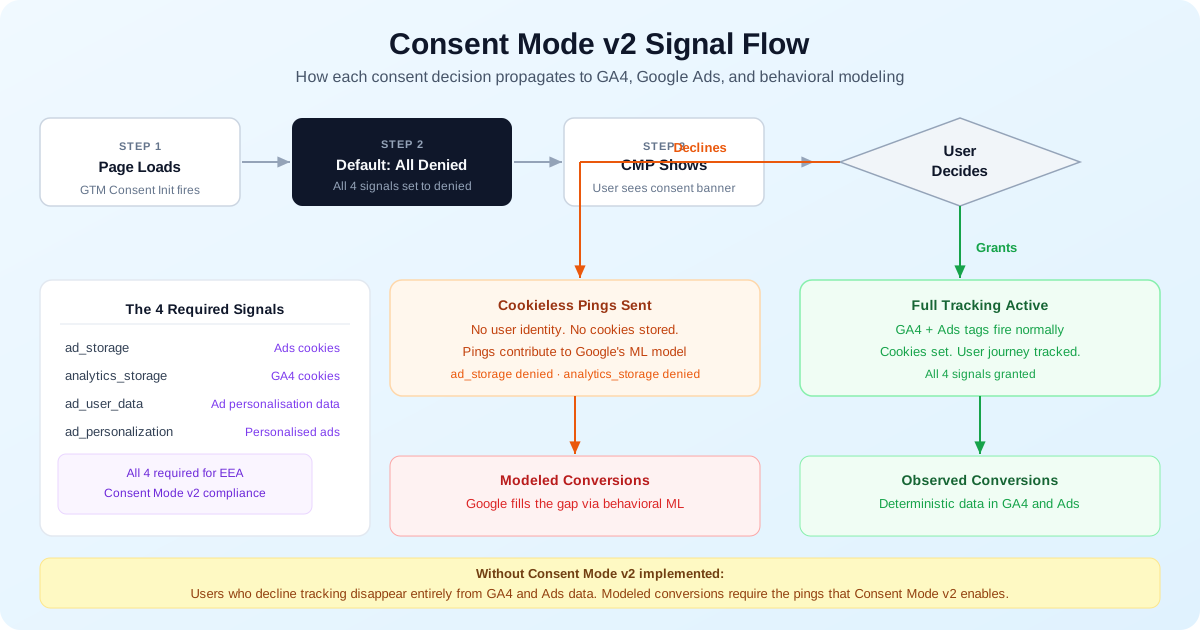
The mechanism works by sending consent state signals to Google's tags before they fire. When consent is declined, GA4 and Google Ads do not drop the user entirely. Instead, they send cookieless pings that carry no identifying information but contribute to Google's behavioral modelling, which estimates conversion rates for the segment that declined tracking. Without Consent Mode v2, those declined users simply disappear from your data entirely.
Four signals are required: ad_storage (advertising cookies), analytics_storage (GA4 cookies), ad_user_data (consent to send user data for ad personalisation), and ad_personalization (consent to show personalised ads). All four need to be handled. The GTM implementation uses a Consent Initialization trigger, which fires before all other tags. The default state should be denied for all four in EEA regions:
gtag('consent', 'default', {
  'ad_storage': 'denied',
  'analytics_storage': 'denied',
  'ad_user_data': 'denied',
  'ad_personalization': 'denied',
  'wait_for_update': 500
});
When the user grants consent through your CMP, the update command fires:
gtag('consent', 'update', {
  'ad_storage': 'granted',
  'analytics_storage': 'granted',
  'ad_user_data': 'granted',
  'ad_personalization': 'granted'
});
Use Google's Tag Assistant to verify the implementation. The consent default must fire on initial page load before any GA4 or Ads tags send data. A common failure mode is the update command firing after the GA4 pageview has already been sent, meaning that first pageview lands without a valid consent state. Tag Assistant's consent timeline view makes this visible.
Consent Mode is worth implementing even for non-EEA traffic. Safari's Intelligent Tracking Prevention limits JavaScript-set cookies to seven days, and Firefox's enhanced tracking protection blocks many third-party cookies entirely. Behavioral modelling fills the data gap, and the quality of modelled conversions improves as your consented data volume increases.
BigQuery Export and the Raw Event Schema
The BigQuery export is the single most important configuration decision you make in GA4. The GA4 interface applies sampling to Exploration reports and thresholding to demographic data. BigQuery bypasses both. You get every event, every parameter, unsampled and unfiltered, in a queryable format you fully control.
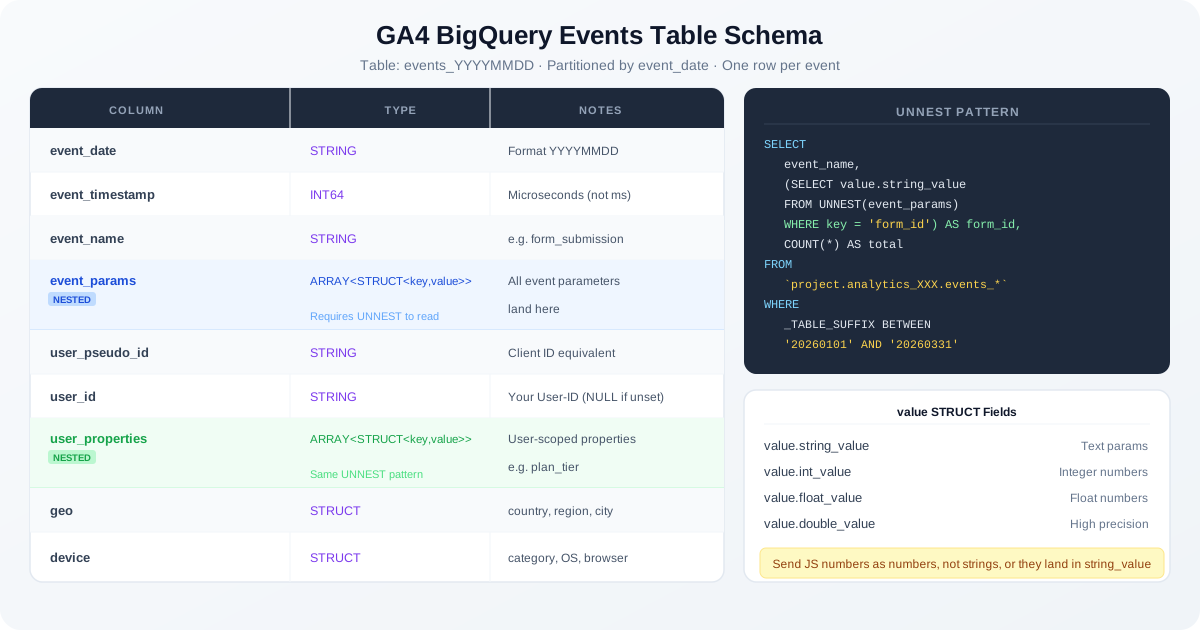
Enable the export under Admin > Product Links > BigQuery Links. Select your Google Cloud project and choose All History for the initial load. The schema creates partitioned tables named events_YYYYMMDD, one per day. The partition structure is important for cost: BigQuery charges per byte scanned, and querying events_* without a date filter on _TABLE_SUFFIX scans your entire dataset. Always filter by date range.
The event_params column is a nested, repeated field typed as ARRAY<STRUCT>. You cannot reference it like a flat column. To extract a parameter value you UNNEST it and filter by key. An example extracting form_id from form submission events:
SELECT
  event_name,
  (SELECT value.string_value
   FROM UNNEST(event_params)
   WHERE key = 'form_id') AS form_id,
  COUNT(*) AS total
FROM `your-project.analytics_XXXXXXX.events_*`
WHERE _TABLE_SUFFIX BETWEEN '20260101' AND '20260331'
  AND event_name = 'form_submission'
GROUP BY 1, 2
ORDER BY 3 DESC;
One operational note on BigQuery costs: the storage is cheap (a few dollars per month for most properties). The query costs are where surprises happen. Unfiltered wildcard queries on a property with millions of daily events can scan gigabytes per query. Use date filters on _TABLE_SUFFIX consistently, and consider partitioning your downstream tables when joining GA4 data with CRM or ad cost data.
Enable the export immediately when you launch GA4. The export only captures data from the point of activation forward with no way to backfill. Every day without it running is a permanent gap in your raw event history.
Server-Side Tagging: Where Serious Implementations Are Heading
Server-side tagging through GTM's server container is the direction that mature analytics programmes are moving, and the reasons are practical rather than theoretical. First-party cookies set by your own server have a much longer lifespan than those set by JavaScript. Safari's ITP caps JavaScript-set cookies at seven days. A cookie set via a server-side response on your own domain can last years. For any property where returning user identification matters for analysis or remarketing, that difference is significant.
Server-side setup involves deploying a GTM server container to a cloud instance (Google Cloud Run is the recommended option at roughly £10 to £20 per month for most properties), then routing your browser hits to that server before they reach GA4 or Google Ads. The server container handles the forwarding. You also get the ability to enrich events server-side with data from your database, like order values or CRM attributes, without exposing that logic in client-side JavaScript.
It is not a quick project, but for any property where first-party data quality and cookie longevity matter, it is the right long-term architecture.
Reporting That Actually Drives Decisions
GA4's Explorations section is genuinely powerful but underused because it requires deliberate setup rather than giving you pre-built views. The most valuable reports to build are funnel explorations, which let you define a multi-step sequence and see exact drop-off rates at each step, and path explorations, which show you what users actually do after a specific event rather than what your conversion model assumes they do.
For executive reporting, connect GA4 to Looker Studio. There are two connector options: the native GA4 connector (fast to set up, uses sampled data for large date ranges) and the BigQuery connector (more complex, fully unsampled). For any dashboard that leadership looks at weekly and acts on, the BigQuery route is worth the setup time. The numbers are the same ones that come out of direct queries, so there is nothing to explain away when someone cross-checks.
Build a custom channel grouping in GA4 under Admin > Data Display > Channel Groups. The default groupings are broad and often useless for channel-level performance decisions. Define your own rules to match how your business actually categorises traffic, and make sure your UTM tagging conventions are consistent enough for the grouping logic to fire correctly on every campaign.
Get weekly growth ideas in your inbox
Practical SEO, PPC, analytics, and CRO notes with zero spam.
Frequently Asked Questions
What is the GA4 event_params column in BigQuery and how do I query it?▾
What is the difference between once_per_event and once_per_session conversion counting in GA4?▾
Why does GA4 show different numbers from my Google Ads account?▾
How does Google Signals thresholding affect my GA4 reports?▾

Digital marketing consultant — SEO, PPC, analytics & CRO.